
Weak WiFi has a way of showing up exactly when you need a strong connection. A video call freezes, a show buffers in the next room, or your phone drops off the network the moment you walk upstairs. UltraXtend is one of the many products built to solve that problem by extending your existing wireless signal into areas your router does not reach well.
It is positioned as a simple, low-cost way to improve coverage without replacing your current setup. For people dealing with dead zones in a bedroom, office, or basement, that alone may sound appealing. The real question is whether it delivers enough value to justify the purchase.
What Exactly Is the UltraXtend?
The UltraXtend is a small, wall-mounted device designed to pick up your existing Wi-Fi signal, boost its strength, and broadcast it further into your home. Think of it like a relay runner. It doesn’t replace your current router; instead, it sits halfway between your router and your problematic dead zones, catching the signal and passing it along to devices that are too far away from the main gateway.
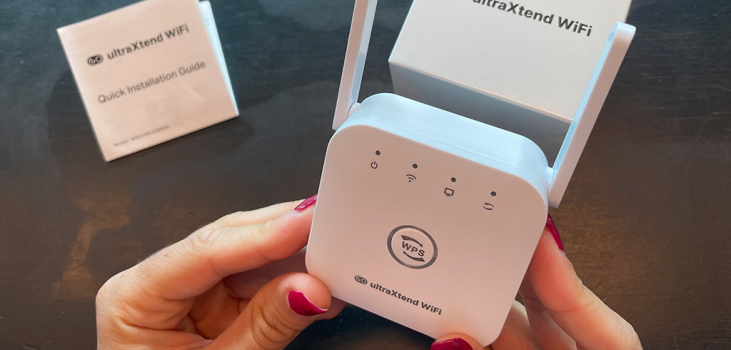
The device plugs directly into any standard electrical outlet. It has a clean, minimalist design that takes up only one plug, leaving the second outlet completely free for other electronics.
On the front of the device, a few small LED indicator lights show you what’s happening in real time. They let you know if the power is on, how strong the Wi-Fi signal is, and whether the device is successfully paired with your router.
Along the bottom, there is a physical Ethernet port, which gives you the option to run a wired connection directly to a device like a gaming console or smart TV.
How UltraXtend Wifi Booster Works?
The setup concept is familiar if you have used a WiFi extender before. You place the device where it can still receive a decent signal from your router, then it rebroadcasts that connection into nearby spaces.
That means placement matters a lot. If you plug it in too far from the router, it may repeat a weak signal. If you place it too close, it may not help extend coverage far enough. Like most extenders, UltraXtend is less about magic and more about proper positioning.
Here is the basic process:
| Step | What happens |
| 1 | Plug the extender into a power outlet |
| 2 | Connect it to your existing WiFi network |
| 3 | Place it between the router and the weak-signal area |
| 4 | Connect your devices to the extended network |
| 5 | Adjust placement if needed for better coverage |
Key UltraXtend WiFi Features:
The performance of any network booster comes down to its internal parts and antenna design. Here is a look at what is inside the UltraXtend.
Dual-Band Technology
The current models feature dual-band support, meaning they broadcast on both the 2.4 GHz and 5.0 GHz wireless frequencies at the same time:
- 4 GHz Band: This band uses longer waves that excel at traveling long distances and passing through solid walls and floors. It is highly reliable but has lower top speeds.
- 0 GHz Band: This band uses shorter, incredibly fast waves that are perfect for heavy tasks like streaming 4K video or downloading massive files. However, it struggles to pass through walls and loses strength quickly over long distances.
By running both bands at once, the booster lets your smart home gadgets handle their business on the 2.4 GHz band, while your phone or laptop takes advantage of the high-speed 5.0 GHz band.
External Antennas
Cheap extenders often use tiny, hidden internal antennas that offer poor range and fixed directional patterns. The UltraXtend uses adjustable external antennas instead. You can physically rotate them to aim the signal exactly where you need it—whether you need to push a signal horizontally across a ranch-style house or vertically up to a second-floor office.
Where It Makes Sense
UltraXtend may be a good fit if your WiFi issues are limited to one or two areas. That could be a home office at the far end of the house, a bedroom upstairs, or a room with thick walls that weaken the signal.
It can also make sense for households that do not need enterprise-level networking or whole-home mesh performance. If your goal is simply to reduce buffering, improve browsing, or keep video calls from dropping in a problem room, an extender can be a practical solution.
That said, expectations should stay realistic. A WiFi extender improves reach more than raw speed. If your internet plan is already slow, the extender will not turn it into a high-performance connection.
Who It May Not Suit
UltraXtend is probably not the best choice for larger homes with multiple floors and widespread dead zones. In those cases, a mesh WiFi system usually offers more stable and seamless coverage.
It may also disappoint users who expect a dramatic speed boost. Extenders help extend a connection, but they do not change the quality of the internet coming into your home.
If your main issue is not coverage but a weak ISP plan, overloaded network, or outdated router, the extender may only solve part of the problem. In those situations, upgrading the router or internet service may do more than adding another device.
Where the UltraXtend Succeeds (and Where it Falls Short)
The Pros
- Works with Any Router: It uses standard Wi-Fi protocols, meaning it pairs perfectly with any router provided by companies like Comcast, AT&T, Spectrum, or Verizon. You won’t need to change your internet plan or swap out your current equipment.
- Incredibly Quick Setup: The physical WPS button lets you link the booster to your router in just a couple of steps, completely avoiding complicated software menus.
- Out-of-the-Way Design: It hugs the wall closely, keeping hallways clear and leaving your other electrical outlets open.
- Wallet-Friendly: It saves you from the massive expense of hiring an electrician to run data lines through your home.
The Cons
- The Shared Speed Trade-Off: This is a reality for all standard range extenders. Because the booster has to share its wireless channel to talk to both your router and your phone at the same time, your maximum speed at the very edge of the extended network will be lower than standing right next to your main router. It is still plenty fast for streaming 4K video and browsing, but you won’t get full gigabit speeds at the furthest corners of your yard.
- Placement Takes a Little Adjusting: If you plug the booster directly inside your dead zone, it will just pick up a broken signal and broadcast that same poor connection. Finding the perfect spot halfway between your router and the dead zone might require moving it once or twice during setup.
Safety and Security Features
Plugging a new device into your home network means you need to be sure it is secure and safe to leave running.
Strong Data Encryption
The UltraXtend doesn’t leave your personal information open to neighbors or hackers. When you sync it with your home network, it automatically adopts your router’s existing security settings, supporting WPA-PSK and WPA2-PSK encryption. This keeps your data safe as it travels through the airwaves and prevents strangers from stealing your bandwidth.
Cooling and Heat Venting
Because network boosters stay plugged in and running 24 hours a day, keeping them cool is essential for performance and safety. The UltraXtend is built with ventilation slots along the sides of the plastic shell. This allows warm air to escape naturally, keeping the internal chips at a safe operating temperature even when multiple devices are streaming video at the same time.
What Customers Tend to Say?
Customer feedback for WiFi extenders usually falls into a few familiar patterns. People who place the device correctly and use it for a limited coverage problem often report that it helps. People who expect it to solve bigger network problems are more likely to feel underwhelmed.
That same pattern appears here. The product seems most useful when the buyer understands what it is designed to do. It is a coverage helper, not a complete network upgrade.
UltraXtend WiFi Pricing and Purchase Considerations:
UltraXtend is sold online, and its pricing may vary depending on promotions or bundles. That makes it important to check the final checkout total rather than relying only on headline discount claims.
Before buying, look at:
- the final price after discounts,
- shipping costs,
- return terms,
- and whether the seller is directing you to the official source.
A lower upfront price can be attractive, but only if the return policy is clear and the product matches your expectations.
Money-Back Guarantee
The product pages mention a 30-day money-back guarantee. That adds a layer of confidence, especially for first-time buyers who are unsure whether an extender will solve their specific problem.
Still, a guarantee is only useful if the return process is straightforward. It is always smart to read the terms carefully before ordering, so there are no surprises later.
Frequently Asked Questions
Q. Will this booster increase my overall internet speed past what I pay for?
No. No booster can make your internet faster than the maximum speed provided by your service provider. If your internet plan is capped at 200 Mbps, the extender cannot give you 300 Mbps. Its job is to take that existing 200 Mbps connection and carry it to parts of your house where the signal used to drop down to zero.
Q. Can I connect multiple UltraXtend boosters in my house?
Yes, you can use multiple extenders to cover a larger home. For the best performance, ensure that each booster connects directly back to your main central router. Avoid “daisy-chaining” them (plugging one extender into another), as this causes severe speed drops and can create connection lag.
Q. What should I do if my home router doesn’t have a WPS button?
If your router doesn’t have a physical WPS button, you can easily set up the booster using any phone or laptop:
- Plug the booster into an outlet near your router.
- Open your phone’s Wi-Fi settings and connect to the local network named UltraXtend or Pix-Link.
- Open a web browser and type 168.7.1 into the address bar at the top.
- Leave the password field blank, log in, select Repeater Mode, pick your home Wi-Fi network from the list, and enter your normal Wi-Fi password to pair the devices.
Q. Can I use the physical port on the bottom for a desktop computer?
Yes. The network port at the bottom lets the device act as a wired bridge. This is highly useful for desktop PCs, older smart TVs, or game consoles that don’t have reliable built-in Wi-Fi, giving them a steady, hardwired connection without needing extra adapters.
Q. Do I need a separate password for the extended network?
No. During setup, the booster automatically copies your main router’s password and security keys. This keeps your home network completely secure and means you don’t have to memorize a brand-new password to use the extended signal.
Q. Where is the absolute best spot to plug it in?
The ideal spot is roughly halfway between your main router and the room with the weak connection. The booster needs to be close enough to your router to pick up a strong, clean signal, so it has a high-quality connection to push into the dead zone.
Summary and Final Thoughts
The UltraXtend Wi-Fi Booster is a highly effective, low-hassle option for fixing annoying dead zones around your home. It offers a smart balance between simple setup, reliable hardware features, and affordability. While it shares the same minor speed trade-offs as any standard wireless repeater, it delivers more than enough performance to handle everyday 4K streaming, smooth video calls, and responsive browsing in rooms that used to have no connection at all.
For renters, remote workers, or anyone looking to fix a specific dead spot without spending a fortune on a massive mesh system or complex rewiring, this plug-in booster provides a practical, straightforward fix. Backed by a 30-day money-back guarantee, it offers a risk-free way to improve your daily home internet coverage.